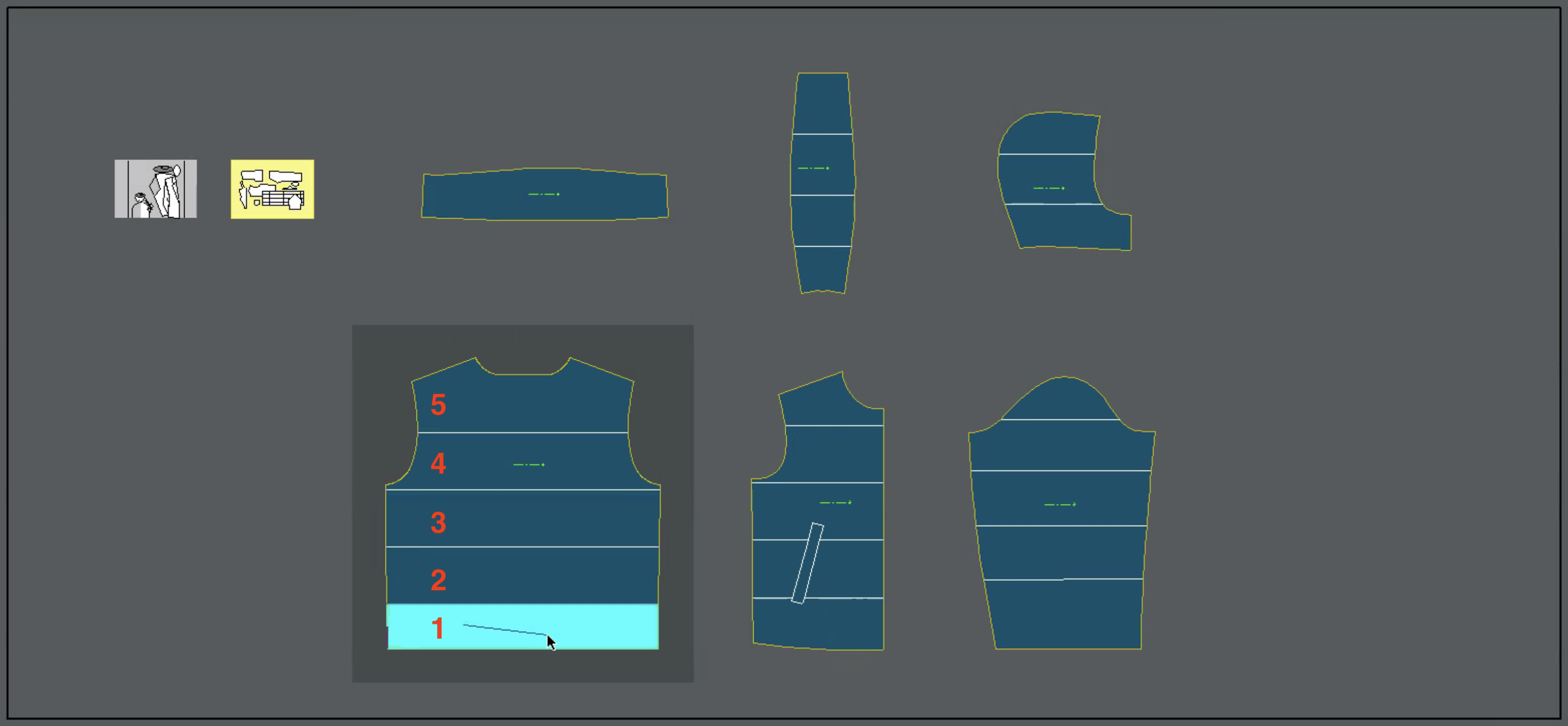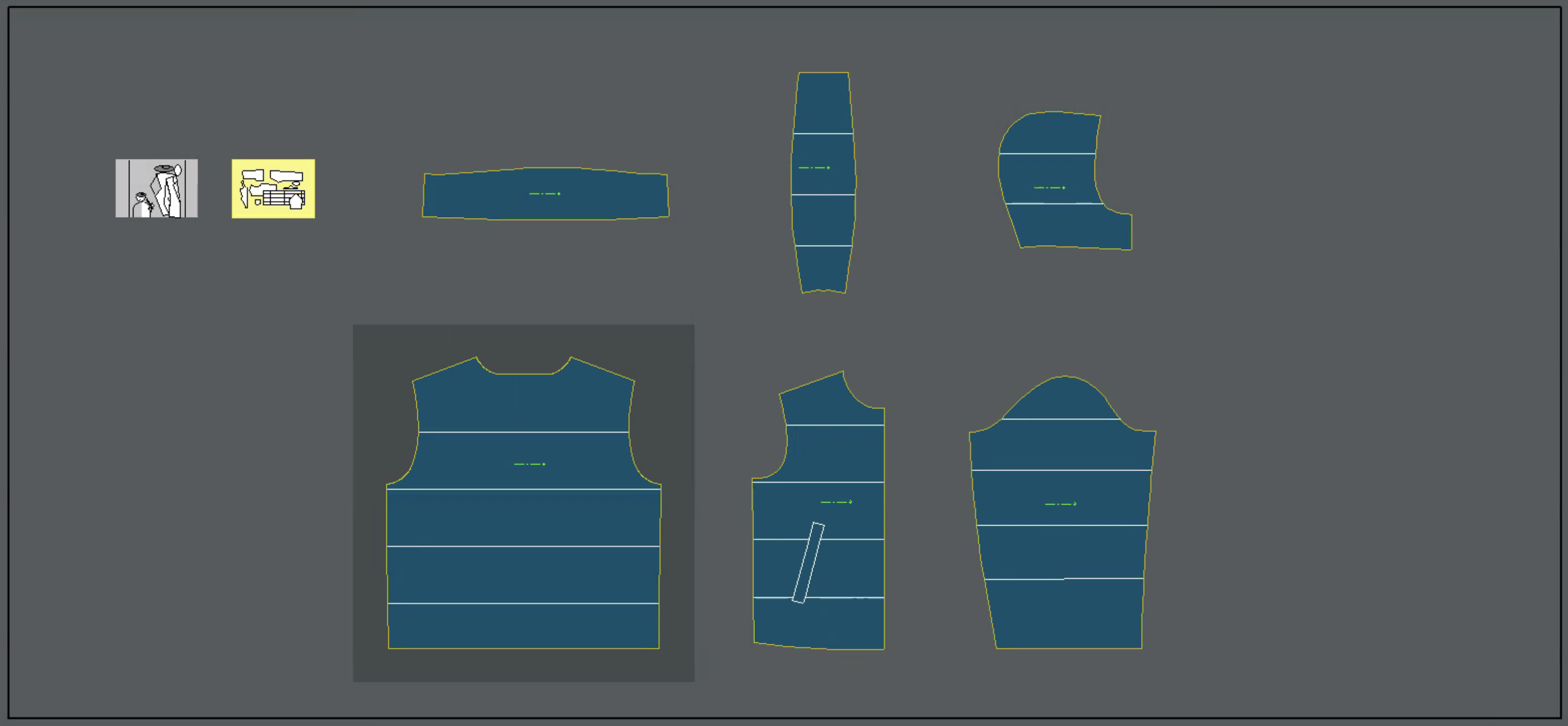
Open the model in Modaris and select the first piece to start from. In the following example the BACK piece.
Workspace | Modaris V6
Extract the first section starting from the bottom and moving upwards. This order is essential for correct data export.
Only by following this exact extraction order can Pesipiuma correctly import the data.
Extraction starting from the lowest section of the BACK piece | Modaris V6
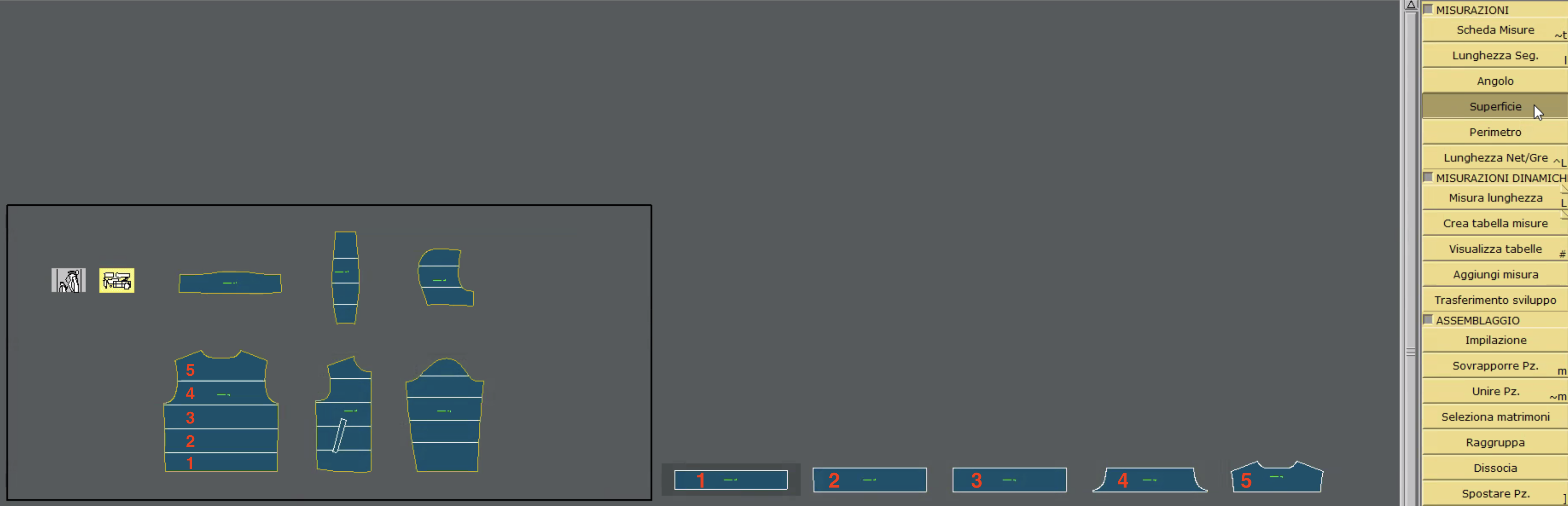
Once all sections have been extracted they will appear in the lower right part of the workspace ordered from left to right.
Extracted sections positioned at the bottom right of the workspace | Modaris V6
Retrieve the section areas
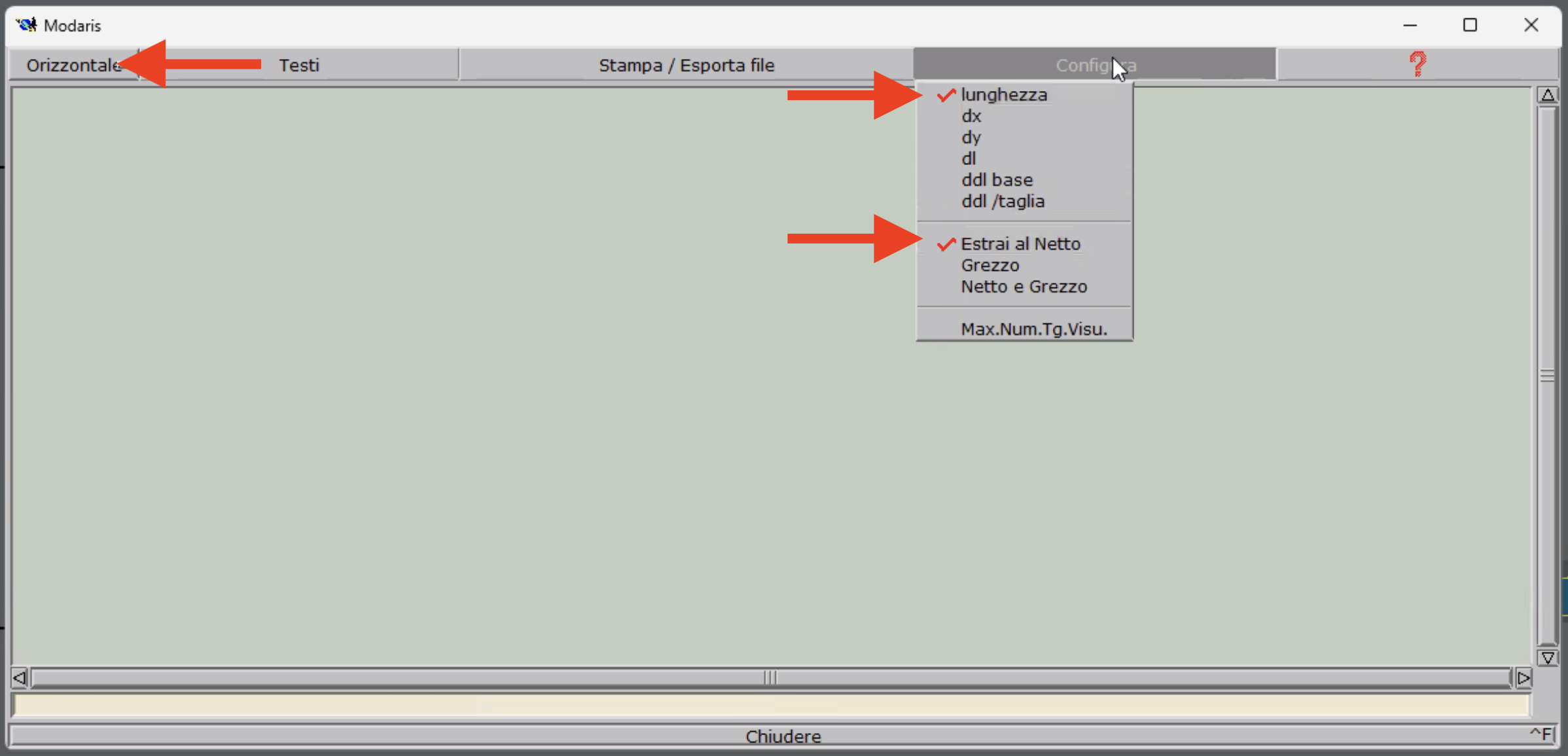
Open the Measures sheet and choose Area from the tool palette on the right.
Set the grid to Horizontal and in the Configure menu choose Net Area.
Measures sheet - Configure | Modaris V6
Click the extracted sections one at a time starting from the leftmost one so that they are added to the Measures sheet in the same order.
On the Modaris workspace the extracted sections are positioned at the bottom right. For a correct export proceed from the first on the left moving rightward. This keeps the order required for importing in Pesipiuma.
Select the sections of the BACK piece starting from the first extracted one | Modaris V6
After adding all sections to the Measures sheet you will get a table with the areas listed from the first section at the top. This order allows correct import in Pesipiuma. If the model is graded the sheet will also contain the measurements for all sizes.
Areas of the BACK sections shown in the Measures sheet | Modaris V6
Export the data
Choose Print/Export file from the menu and select Export Data File (Modaris V6 and V7) or Text file (Modaris V8) depending on the version in use.
Select the destination on your computer and type the file name following these rules based on the Modaris version:
For Modaris V6 or V7: the name must explicitly include the .xls extension
For later versions: the name must explicitly include the .csv extension
At this stage you can also manage the quantity of the pieces by adding the pound sign (#) to the .xls or .csv file name. For example, importing a file named front#2.xls will assign a quantity of 2 to the front piece.
An Excel compatibility error may appear. Simply ignore it and continue saving the .xls or .csv file.
Repeat these operations for all pieces to be padded, always respecting the bottom-to-top extraction order. When finished you will have as many .xls (or .csv) files as there are pieces.
Examples
Example: Excel file exported from Modaris V6 in .xls format
In this example exported from Modaris V6 the first row for reading sizes is row 1, so in Workspace Preferences check that the Lectra-v6a importer has First Row set to 1.
Example of Excel file resulting from exporting the BACK piece | Modaris V6
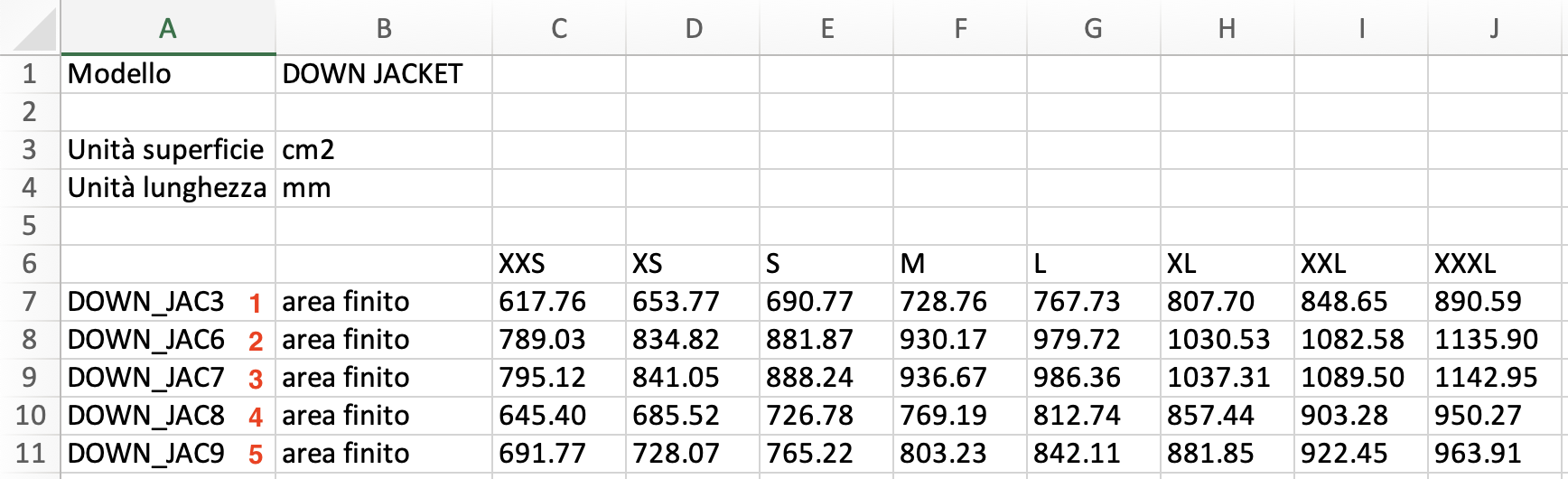
Example: Excel view of the file exported from Modaris V8 in .csv format
In this example exported from Modaris V8 the first row for reading sizes is row 6, so in Workspace Preferences check that the Lectra-v8a importer has First Row set to 6.
Example of file resulting from exporting the BACK piece | Modaris V8
2. Import the data generated by Lectra Modaris into Pesipiuma
Click the Import from Lectra-v6a (or Import from Lectra-v8a) button in the left sidebar.
Lectra-v6 Data Importer window | Pesipiuma
In the Data Importer window you can set a default coefficient and quantity for all imported pieces. If not specified, the default coefficient is 0 and the quantity is 1. Rounding defaults to the tenth of a gram.
Click the Select file button to choose all the .xls (or .csv) files for the pieces exported from Lectra Modaris. Once selected, the list of pieces to be created will appear in the lower box.
Finally click Import to complete the operation.
After processing the files the report editor will display the list of pieces with their sections created automatically. If the model was graded all sizes will also be created. At this point you can edit the quantities and coefficients if needed.
The Lectra importers support custom configuration of certain parameters. This allows the import operations to be adapted to the specific .xls or .csv files exported from Modaris. To proceed with customization see the section Customize the Lectra importers.